
If your eSIM is installed but you have no data or signal in Israel, the fix is almost always one of a handful of settings. Work through this checklist in order and you'll usually be online within a minute.
Quick checklist
- 1Confirm the plan's start date has arrived — a scheduled activation won't provide data early.
- 2Enable the Israel line and turn on Mobile data for it (not your home line).
- 3Toggle Airplane mode on and off, or restart the phone, to force a fresh network registration.
- 4Set the APN to "internet" for the Israel line.
- 5Make sure Data roaming is ON for the eSIM line — this is normal and expected for travel eSIMs.
Still stuck?
Our step-by-step guides cover setup and connection problems — and support answers if you are still blocked.
Open the help centreSetting the APN to "internet"
- iPhone: Settings → Cellular → the Israel line → Cellular Data Network → APN: internet.
- Android: Settings → Connections/Network → Mobile networks → Access Point Names → add/edit → APN: internet.
- Save, then reselect the line and toggle mobile data off and on.
One QR, one device
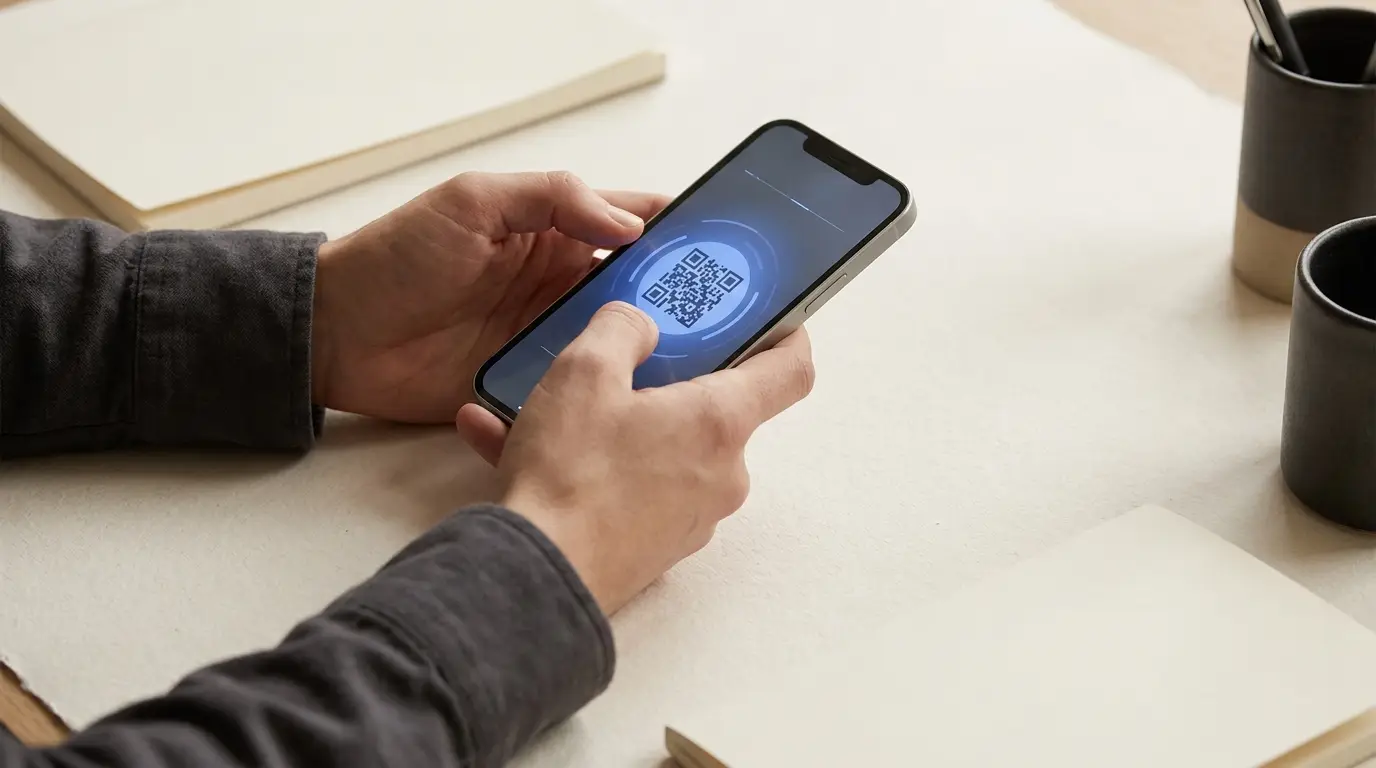
An eSIM QR code installs on a single device. If installation failed, make sure it wasn't already added to another phone. If needed, request a fresh code rather than rescanning the used one.
Still stuck?
If you've tried the above and still have no data, check that mobile data isn't accidentally locked to your home line, that airplane mode is off, and that you have signal bars. When in doubt, a full restart after landing resolves most first-connection issues.